Exporting HTML Files for Submission
For the formative and summative assessments, you will need to export your HTML file rather than saving it via your browser. Whilst HTML files saved from the browser and exported from RStudio will look absolutely identical when opened, some browsers - and browser extensions - will add additional code within the HTML file. This additional code does not change how the file looks when opened, but the code in the file creates issues for Turnitin.
When you knit R Markdown documents to HTML, RStudio actually creates a new .html file with the same name as your R Markdown document. You can confirm this by looking in the ‘Files’ tab in bottom-right.
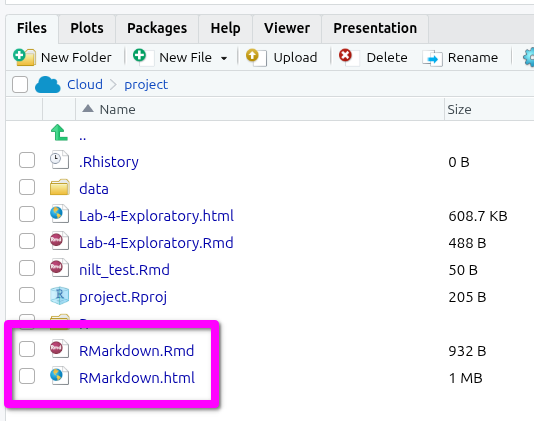
To export your knitted HTML file then -
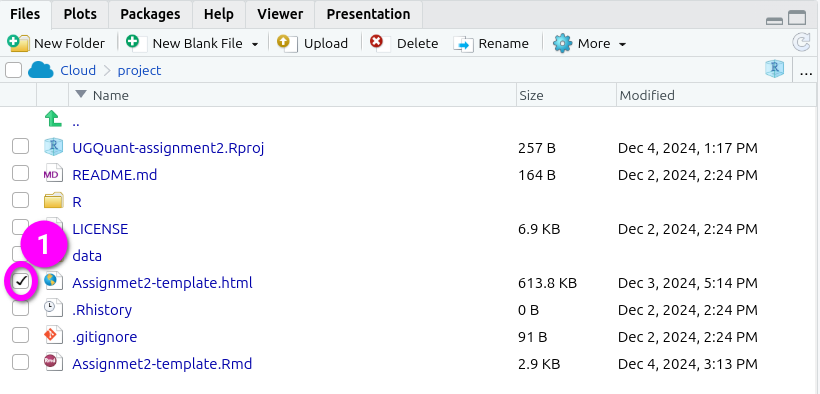
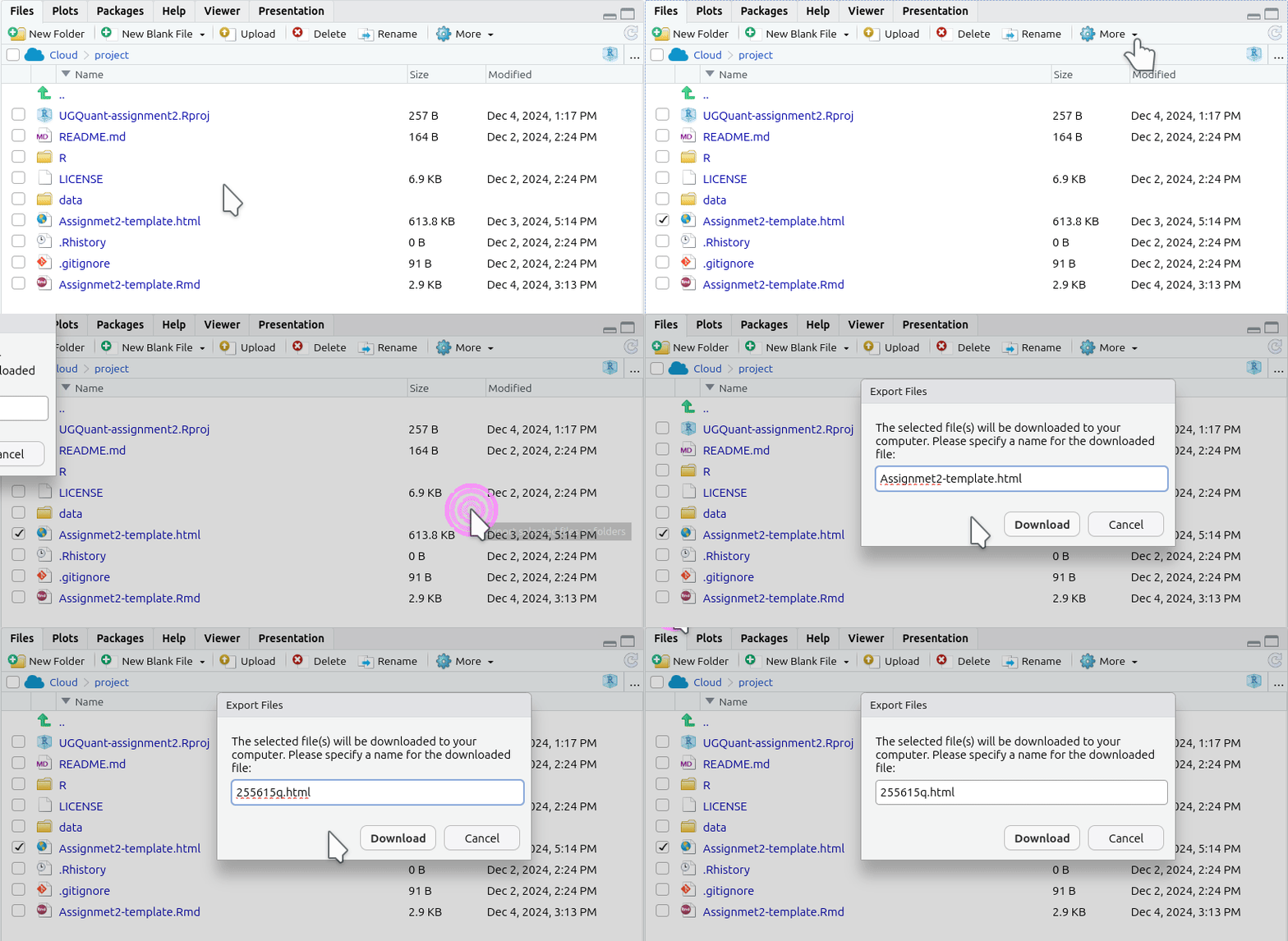
- Check the box next to the knitted HTML file you want to export in the ‘Files’ panel. By default, the Files panel is on the bottom right of the screen.
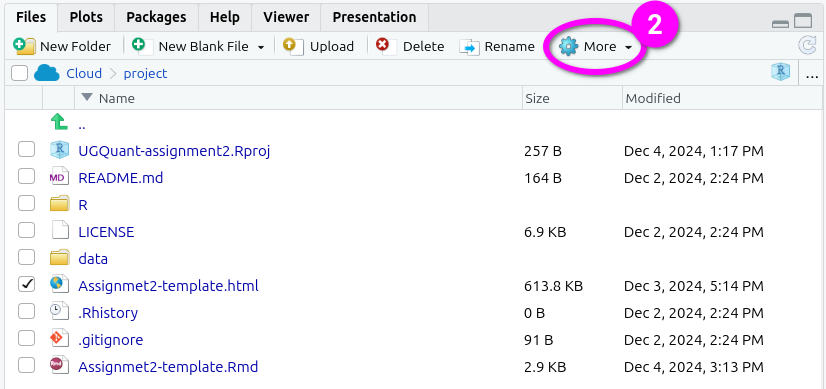
- Click ‘More’ from the toolbar at the top of the Files panel.
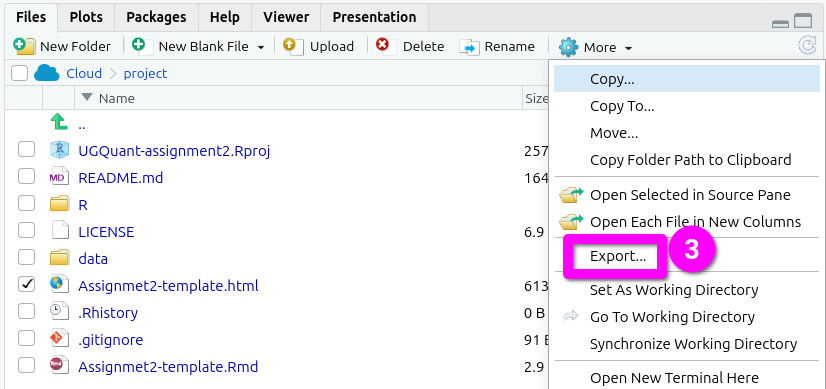
- Click ‘Export’ from the menu options that pop-up.
- This will pop open an ‘Export Files’ dialogue. Here, for the assessments, you can rename the file to include your student number. Just make sure the “.html” at the end remains included.
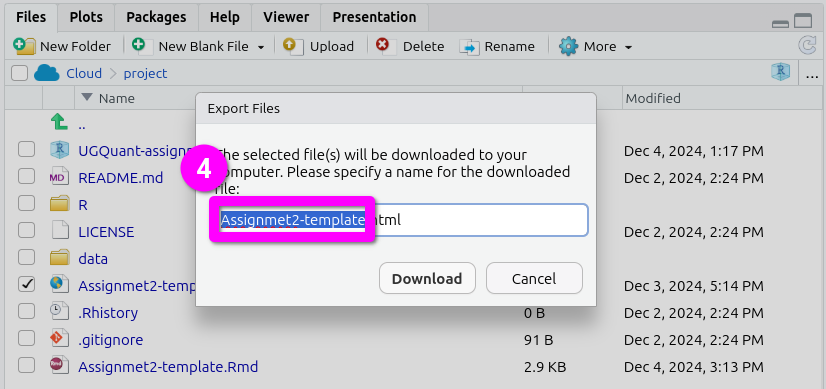
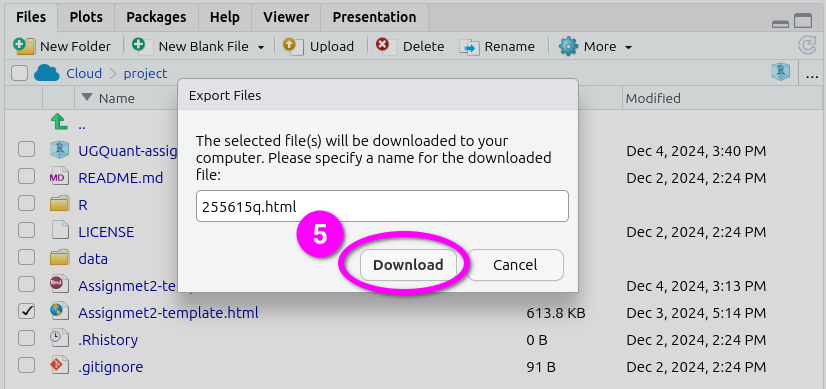
- After naming the file, click ‘Download’. This should open a dialogue to select which location to save the file. (If not see the ‘Important’ note below.)
Here’s a short gif running through all the steps together.
Important: Some browsers by default will download to a ‘Downloads’ folder and instantly open the file within the browser after its finished downloading. This will open your knitted file in a tab within your browser. Do not then ‘Save as…’ the file from within the browser. Instead, close the tab and use your file explorer to navigate to your ‘Downloads’ folder to find the exported copy of your file to submit.